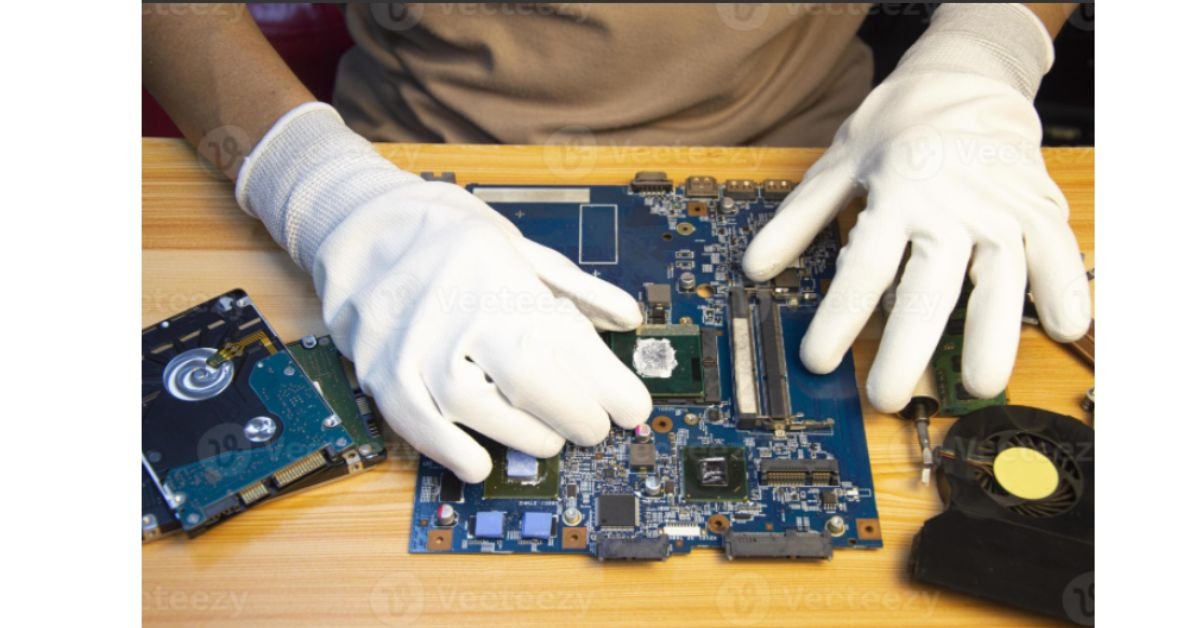
Computers have quietly become the backbone of everyday American life. From remote work and online banking to school assignments and small business operations, a single hardware failure or software glitch can bring an entire household or office to a standstill. Yet when something goes wrong, most people have no idea who to trust with their machine, their data, or their money.
That uncertainty is exactly why choosing a repair provider matters so much. A rushed decision can lead to overpriced quotes, unnecessary part replacements, or worse, a technician who mishandles sensitive files. Well-established shops such as Tech!Espresso have built reputations by focusing on transparency and customer education rather than upselling, which is the standard every repair service should be measured against. This guide walks you through everything you need to know before handing over your laptop, desktop, or workstation to a repair technician.
Why Computer Problems Are More Common Than Ever
The average American household now owns multiple internet-connected devices, and each one is a potential point of failure. Software updates, aging hardware, dust accumulation, malware, and simple user error all contribute to the steady stream of repair requests technicians handle every day.
Unlike a decade ago, when a computer might last five or six years without major issues, today’s devices are more compact, run hotter, and pack in more components than ever. That density creates more failure points, especially around cooling systems, batteries, and storage drives. At the same time, cyber threats have grown more sophisticated, meaning even a machine with no obvious hardware problem can be silently compromised.
The Real Cost of Ignoring Small Issues
A computer that runs slowly, overheats occasionally, or freezes during certain tasks is often signaling a problem that will get worse over time. Ignoring these warning signs rarely saves money. A fan that struggles to keep a laptop cool today can lead to a fried motherboard six months from now. What starts as a $60 diagnostic and cleaning appointment can turn into a $400 replacement if left unaddressed.
Common Computer Problems Homeowners Face
Understanding what typically goes wrong helps you communicate more clearly with a technician and avoid unnecessary charges.
Hardware Failures
- Failing hard drives or SSDs: Clicking sounds, sudden crashes, or missing files often point to a dying storage drive.
- Battery degradation: Laptops that no longer hold a charge, or that shut down unexpectedly, usually need a battery replacement.
- Overheating: Dust buildup inside fans and heat sinks is one of the most preventable yet common causes of hardware damage.
- Screen and keyboard damage: Physical wear, spills, or accidental drops account for a large share of repair visits.
Software and Performance Issues
- Slow boot times: Often caused by too many startup programs, a fragmented drive, or insufficient RAM.
- Frequent crashes or blue screens: Can stem from outdated drivers, corrupted system files, or failing hardware.
- Malware and virus infections: Still one of the leading reasons people bring computers in for professional cleanup.
- Operating system errors: Failed updates or corrupted files can leave a system unbootable.
How to Evaluate a Computer Repair Shop
Not all repair providers operate the same way, and the difference between a good experience and a frustrating one usually comes down to a few key factors.
1. Transparent Pricing
A trustworthy shop will provide a clear diagnostic fee and explain repair costs before starting any work. Be cautious of vague quotes or providers who pressure you into same-day part replacements without first explaining the actual problem.
2. Technical Certifications and Experience
Look for technicians with recognized certifications or a documented track record. Years of hands-on experience with a wide range of brands, from consumer laptops to business workstations, tends to produce more reliable diagnoses than a shop that only handles one type of device.
3. Data Privacy Practices
Your computer likely contains personal photos, financial records, and work documents. Ask how the shop handles data during repairs, whether they back up files before major work, and what happens to your information once the job is complete.
4. Turnaround Time and Communication
A reputable repair service keeps you updated throughout the process instead of leaving you guessing. Clear communication about expected completion dates, part availability, and any complications is a strong sign of professionalism.
5. Warranty on Repairs
Legitimate shops stand behind their work. A warranty on parts and labor, even a short one, shows confidence in the quality of the repair and gives you recourse if the same issue reappears shortly after.
DIY Fixes You Can Try Before Calling a Professional
Not every issue requires a technician. Some problems can be resolved safely at home with basic troubleshooting.
Restart and Update First
It sounds obvious, but a full restart combined with checking for pending operating system updates resolves a surprising number of performance issues. Outdated drivers, in particular, are a common culprit behind display glitches and connectivity problems.
Clean Up Startup Programs
Too many applications launching at startup can slow down even a powerful machine. Reviewing your startup list and disabling anything unnecessary often produces a noticeable speed improvement.
Run a Malware Scan
Before assuming a hardware problem, run a full scan using reputable antivirus software. Malware can mimic hardware symptoms, including slow performance, random crashes, and unexpected pop-ups.
Physically Clean the Device
Compressed air can safely remove dust from vents and fans without opening the device. This simple maintenance step, done every few months, significantly reduces the risk of overheating.
If these steps don’t resolve the issue, or if you’re uncomfortable opening the device yourself, that’s the point where professional help becomes worthwhile.
What to Expect During a Professional Repair Visit
The typical repair process helps set realistic expectations and reduces anxiety about handing over your device.
Step One: Diagnostic Assessment
A technician will run tests to identify the root cause of the problem rather than guessing based on symptoms alone. This often includes hardware diagnostics, software checks, and a review of error logs.
Step Two: Quote and Approval
Once the issue is identified, you should receive a clear explanation of what needs to be repaired, the estimated cost, and the expected timeframe. Reputable shops will not proceed with paid work without your approval.
Step Three: Repair and Testing
After the repair is completed, the device should go through testing to confirm the original issue is resolved and no new problems have surfaced.
Step Four: Handoff and Follow-Up
A good repair experience ends with clear instructions on any maintenance steps you should take going forward, along with information on warranty coverage should the issue recur.
Preventive Maintenance: Reducing Future Repair Needs
Regular maintenance is far cheaper than emergency repairs. A few consistent habits can meaningfully extend the life of your computer.
- Schedule periodic cleanings to prevent dust buildup, especially if you live in a dusty environment or have pets.
- Keep software updated, including the operating system, drivers, and antivirus definitions.
- Back up important files regularly using both cloud storage and a physical external drive.
- Avoid extreme temperatures, which can degrade batteries and internal components over time.
- Use a surge protector to guard against power spikes that can damage sensitive electronics.
Frequently Asked Questions
How much does a typical computer repair cost in the US? Costs vary widely depending on the issue, but diagnostic fees generally range from $40 to $100, while full repairs involving parts like screens, batteries, or storage drives can range from $100 to $500 depending on the device and component.
Is it worth repairing an older computer, or should I just replace it? If the repair cost is less than half the price of a comparable new device and the computer otherwise meets your needs, repair is usually the more economical choice. Devices older than seven or eight years, however, may be approaching the point where replacement makes more sense.
How long does a standard computer repair take? Simple issues like software cleanup or malware removal can often be resolved within a day. Hardware repairs involving parts that need to be ordered may take anywhere from three to ten business days.
Can a repair shop recover data from a failed hard drive? In many cases, yes. Data recovery success depends on the extent of the damage, but experienced technicians can often retrieve files from drives that no longer boot normally. Severe physical damage may require specialized recovery labs.
What should I do before bringing my computer in for repair? Back up any critical files if the device is still functioning, note down any error messages you’ve seen, and remove personal accessories. If possible, write your account passwords somewhere safe in case the technician needs access during diagnostics.
Final Thoughts
A malfunctioning computer can feel like a minor emergency, especially when work, school, or personal records depend on it. The good news is that most problems, whether hardware or software related, are fixable when handled by a knowledgeable technician who communicates clearly and respects your time and data.
Taking a few minutes to evaluate a repair provider’s transparency, certifications, and warranty policy pays off far more than choosing the first option that appears in a search result. Combine that careful selection process with regular preventive maintenance, and you’ll significantly reduce how often you need professional help in the first place. When you do need expert support, working with an established and customer-focused provider makes the entire experience far less stressful and far more reliable.